
Compare puts budgets side by side to spot differences in costs and structure: two versions of the same production, the budgets of comparable productions, or a quotation against the work budget.
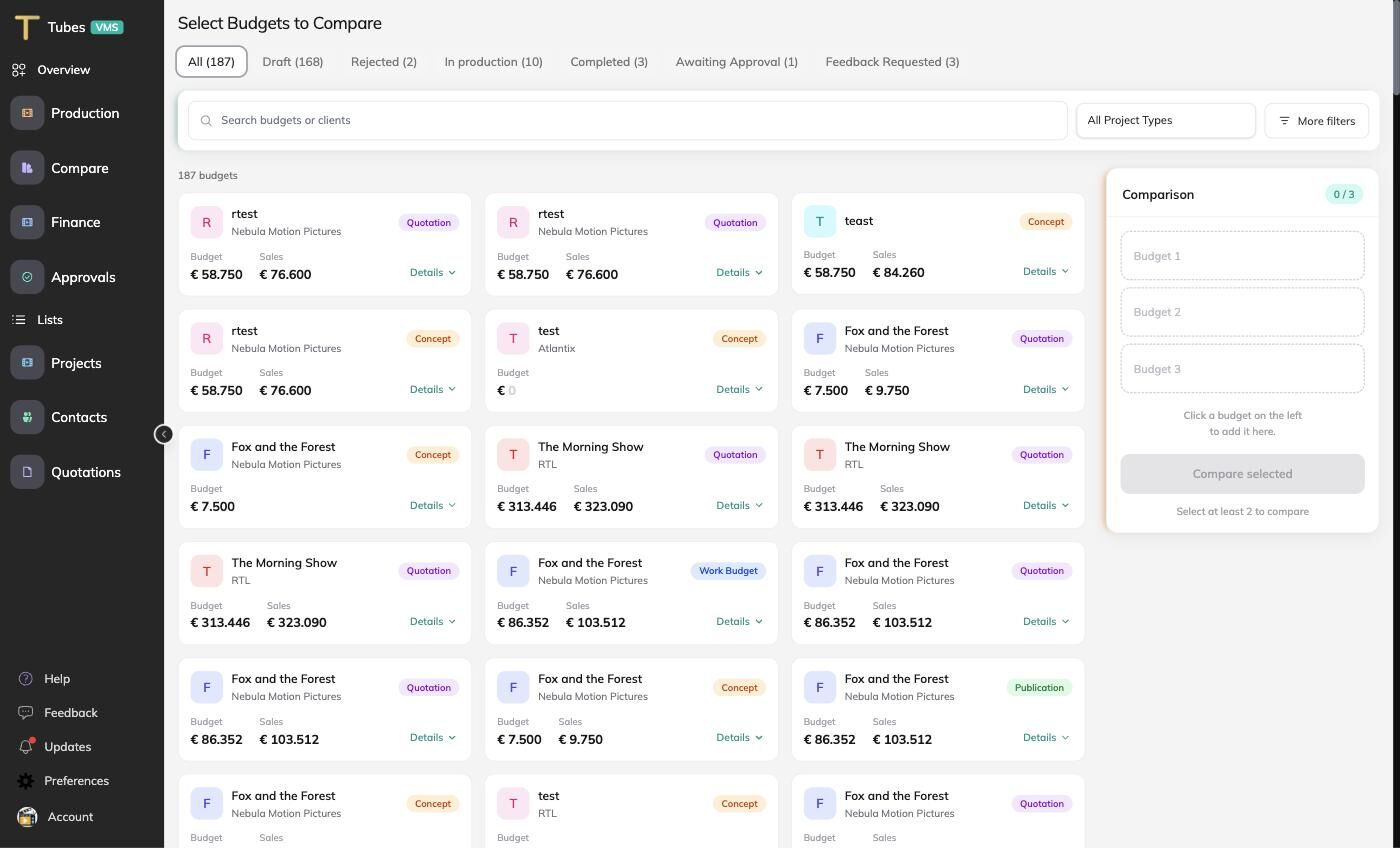
Compare
- Open Compare in the sidebar, or the Compare screen of a budget.
- Select budgets from the list. Click a card to add it to the comparison panel on the right. Use the filters (client, project type, duration, episodes, amount range, owner) to find them.
- Drag to change the order of the columns.
- Choose Compare selected.
The comparison shows the budgets as columns, with the cost categories and lines as rows and the differences between them. Clear the selection to start again.
Compare a budget with its own versions
From the Compare screen of a budget you can also compare that budget with its saved and published versions, to see what changed between the client version and the version after the recce.
Tip: Comparing the published budget with the work budget at the end of a production is the quickest way to see where the original estimate was off, and to improve your templates for the next one.