
All actual costs of your productions come in as transactions: invoices, receipts, payment card lines, payroll and other costs. Upload a document or add one manually, and Tubes matches it against your budget so you always know where you stand.
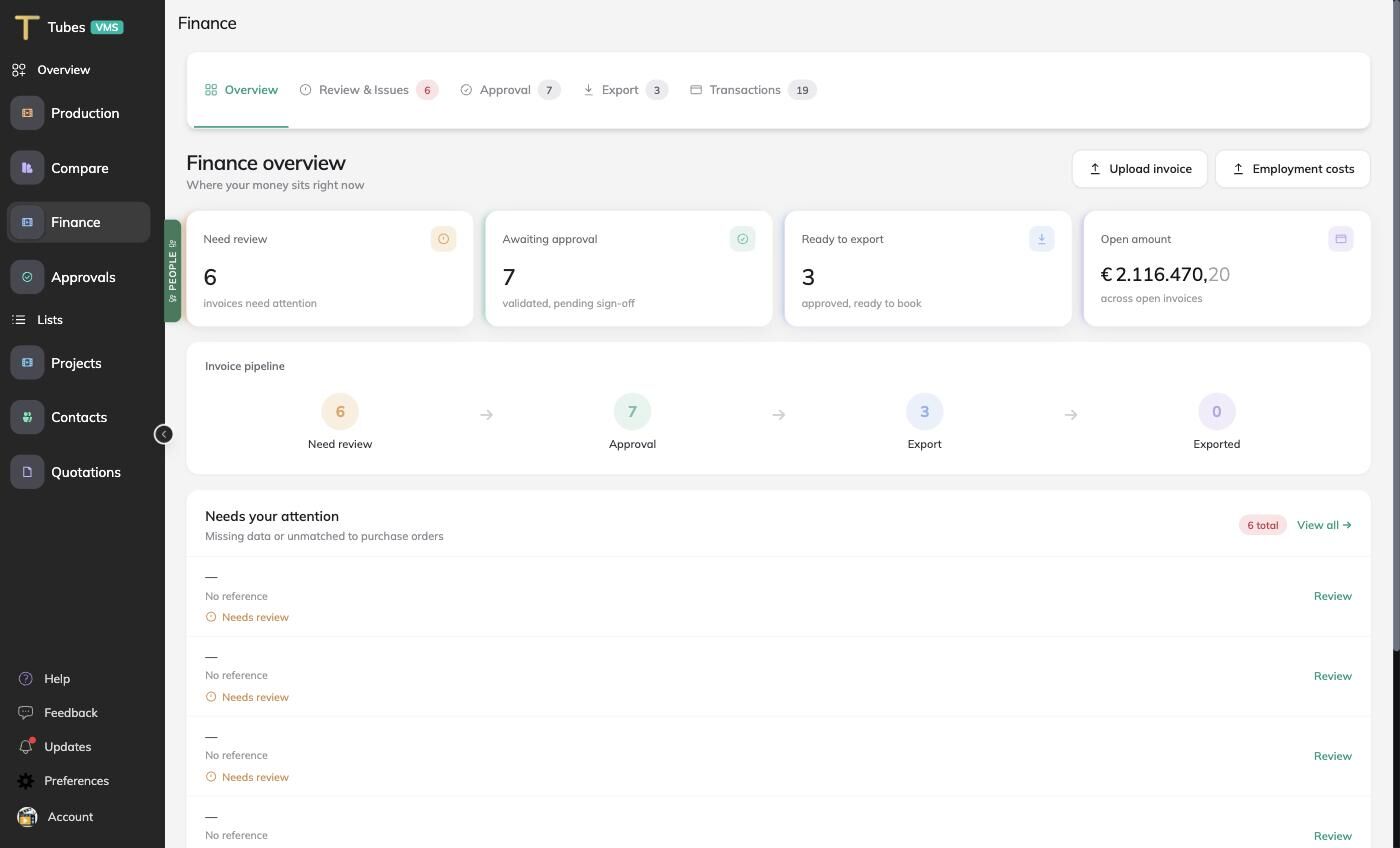
One pipeline
A transaction moves through fixed stages:
- Received: uploaded through Upload documents, submitted by a supplier through the portal, imported from a payment card export, or entered by hand.
- Read: OCR extracts supplier, invoice number, dates, amounts, VAT and the lines. You check and correct.
- Linked: every line gets a cost type, a project and, where there is one, the purchase order (committed cost) it belongs to.
- Validated: the payment approval rules run and flag issues: a missing PO reference, a line above the PO remainder, a duplicate invoice, a missing cost type, a high VAT rate, a high amount, an old invoice date.
- Approved: the approvers on the project and in finance approve. See How approval works.
- Exported: to Excel or to your accounting system, in batches. See Export approved costs.
The Finance hub
Finance in the sidebar has tabs for each stage:
- Overview: the totals and what is where.
- Review & Issues: transactions with open issues to resolve.
- Approval: validated invoices and costs awaiting final approval.
- Export: approved items ready to go out, and the export history.
- Transactions: every transaction, with search and filters.
Depending on your setup there are also tabs for payment cards and people (payroll).
Per project
Within a project, the Production tab has Transactions, Invoices, Committed costs (PO) and Project Finance, showing the same transactions for that production only. The Forecast and Cost Report use them to show cost to date, committed and the expected final cost.
History
Tubes keeps a field-level history of finance transactions: who changed what and when. Open the audit log from a transaction or under Settings > Audit logs.